How a Mouse Jiggler Saves Your Lesson Flow
The Teacher’s Silent Assistant
Every teacher has experienced the "Screen of Death." It usually happens right when the lesson is hitting its stride. You’ve finally got the class settled, a set of complex instructions or a writing prompt is projected clearly on the board, and you head off to the back of the room to help a student who is struggling with a tricky concept. You are in the zone, providing great feedback, but then you glance up and the screen has gone black. The instructions have vanished, replaced by a cold, gray login box.
Now, the flow is broken. You have to stop your one-on-one support, walk all the way back to your desk, and type your password while thirty pairs of eyes watch you in silence. It’s a small interruption, but in the world of classroom management, it’s like trying to run a full-speed race while someone keeps reaching out to tie your shoelaces together. It’s frustrating, it’s unnecessary, and it pulls your attention away from where it’s needed most: the students.
What exactly is a Mouse Jiggler?
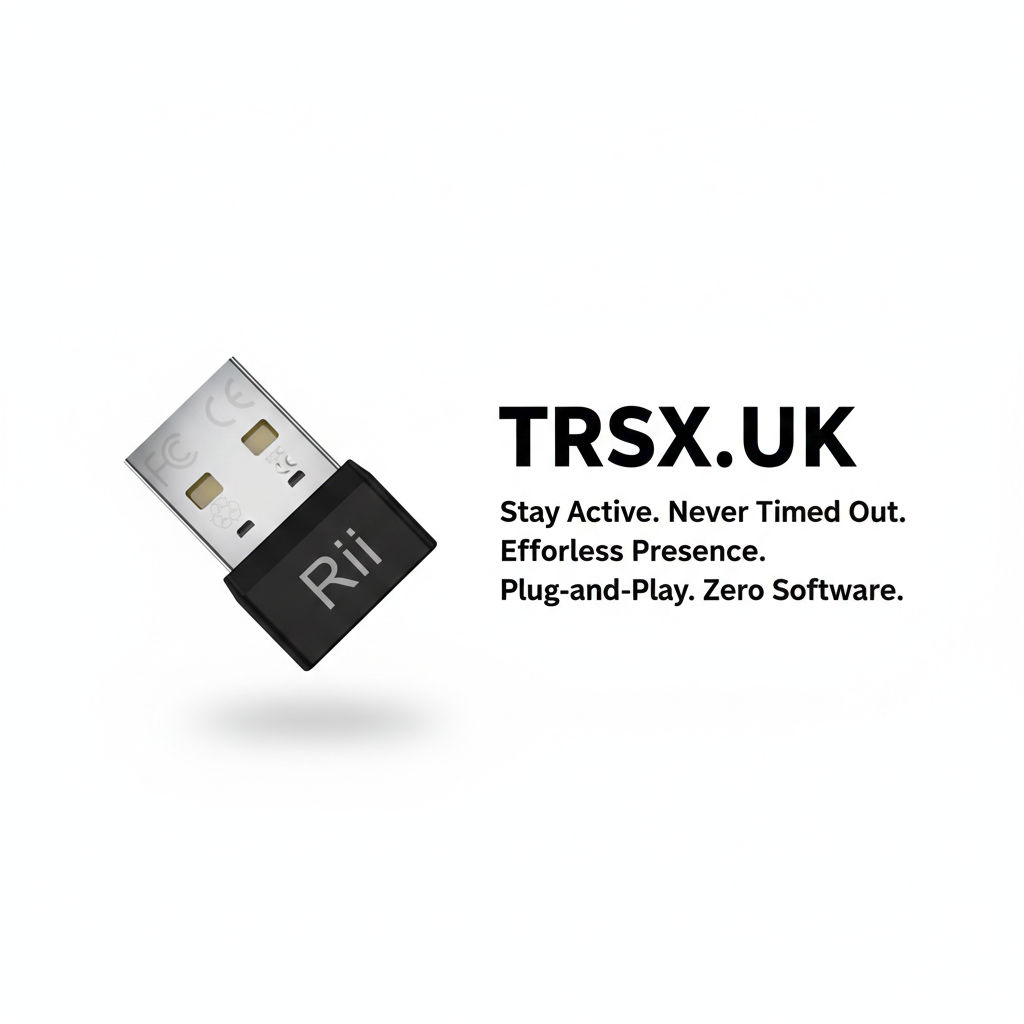
If the name sounds a bit funny, the function is actually quite brilliant. A mouse jiggler is a tiny gadget, often a USB plug no bigger than a fingernail, that tells your computer a microscopic bit of movement is happening even when you aren't physically touching the mouse or keyboard.
Think of your classroom projector like a campfire. If you stop throwing logs on it, the fire eventually flickers out and leaves everyone in the dark. In this scenario, your computer is programmed to "stop feeding the fire" after a few minutes of inactivity to save energy. A mouse jiggler acts like an automatic log-feeder. It keeps the fire burning brightly in the front of the room while you are busy in the corners, ensuring you never have to stop a productive conversation just to "restart the fire" at your desk.
Why it’s a Game-Changer for the "Roaming" Educator
The real power of this tool shows up when you leave your desk to become a "roaming" educator. We know that the best teaching often happens when we are moving through the rows, checking notebooks, and catching mistakes before they become habits. When you have a jiggler plugged in, you can spend ten or fifteen minutes circling the room and giving high-quality feedback, knowing with absolute certainty that the lesson objectives, the countdown timer, or the diagram on the board will stay exactly where they are.
It also eliminates that awkward "stage fright" moment. We’ve all been there—trying to type a long, complex password with a slightly sweaty hand while the class starts to get restless because their visual aid disappeared. By the time you get the screen back up, you’ve lost the "hook" of the lesson. If you’re doing a hands-on science experiment, a messy art demo, or a PE briefing away from your laptop, the jiggler acts like a loyal digital assistant. It holds your place and keeps your resources active so that the technology follows your lead, rather than the other way around.
The Trade-offs: Being Tech-Smart in a School
At TRSX, we are big believers in being tech-savvy, which means we have to look at the downsides with a clear head. While this tool is like adding power steering to your classroom, you still have to be the one in the driver's seat. The biggest risk is security. If your screen doesn't lock automatically, your emails, student data, and gradebook are effectively an open book.
You should treat a jiggler with the same caution you’d treat your house keys. You must make it a habit to manually lock your screen (by hitting the Windows Key and "L") or simply unplug the gadget before you leave the room for lunch, a meeting, or a break. Leaving your computer awake while you aren't in the room is like leaving your car running with the windows down and the keys in the ignition—it’s an invitation for trouble.
Additionally, you have to keep an eye on your hardware. Keeping a high-resolution projector or a bright laptop screen active for an hour while you walk around will eat through your battery life much faster than usual. It’s a good idea to keep your charger handy if you plan on using your "assistant" for the whole afternoon. Finally, remember that some school IT departments are very protective of their USB ports. It’s always worth a quick, friendly chat with your IT lead to show them how this tool helps you stay mobile and effective. They might even be able to suggest a "software recipe"—a specific setting or app—that achieves the same goal without the extra plug.
The TRSX Verdict
At the end of the day, a mouse jiggler is a simple, low-cost way to ensure that your technology actually supports your teaching style. It acknowledges that a teacher's work isn't just done sitting at a desk; it’s done in the aisles, at the lab benches, and in the heart of the classroom. By handing the "boring" task of staying awake over to your digital intern, you are free to focus on the human parts of the job that a computer could never replicate.
Ready to upgrade your teaching toolkit?
If you’re ready to stop the "password scramble" and keep your lessons flowing, this ultra-slim USB mouse jiggler is exactly the kind of "Digital Intern" we’ve been talking about. It’s tiny, driver-free, and plugs right into your laptop or hub without any complicated setup.
Think of it as a small investment in your own peace of mind. By keeping your screen active while you roam the classroom, you can stay focused on your students’ progress instead of racing back to your desk to beat a login timer. You can find the model we’ve been testing right here: